LiveSchools365 Role Training Kit — Teacher
Trainer-grade · 2026-09-23 · ~24 min · https://liveschools365.com
USER TRAINING (not QA smoke).
1. Purpose
Run the classroom day: attendance, leave, marks, and notices.
Business scenario
It is period 1 on a normal school day. You mark attendance, share one study resource, enter marks for an assigned paper when ready, and check notices so you do not miss school announcements.
Learning outcomes
- Complete the Teacher Implementation Guide track end-to-end (~24 minutes).
- Run the classroom day: attendance, leave, marks, and notices.
- Use official menu paths instead of informal messaging for auditable school work.
- Know when to Mark done and how to resume from /implement or Trial Journey.
2. Sign in
- Login:
/school-management-software-login - User:
teacher@liveschool - Password:
LiveSchool@123 - Guide:
/implement/teacher
3–4. Guided workflows
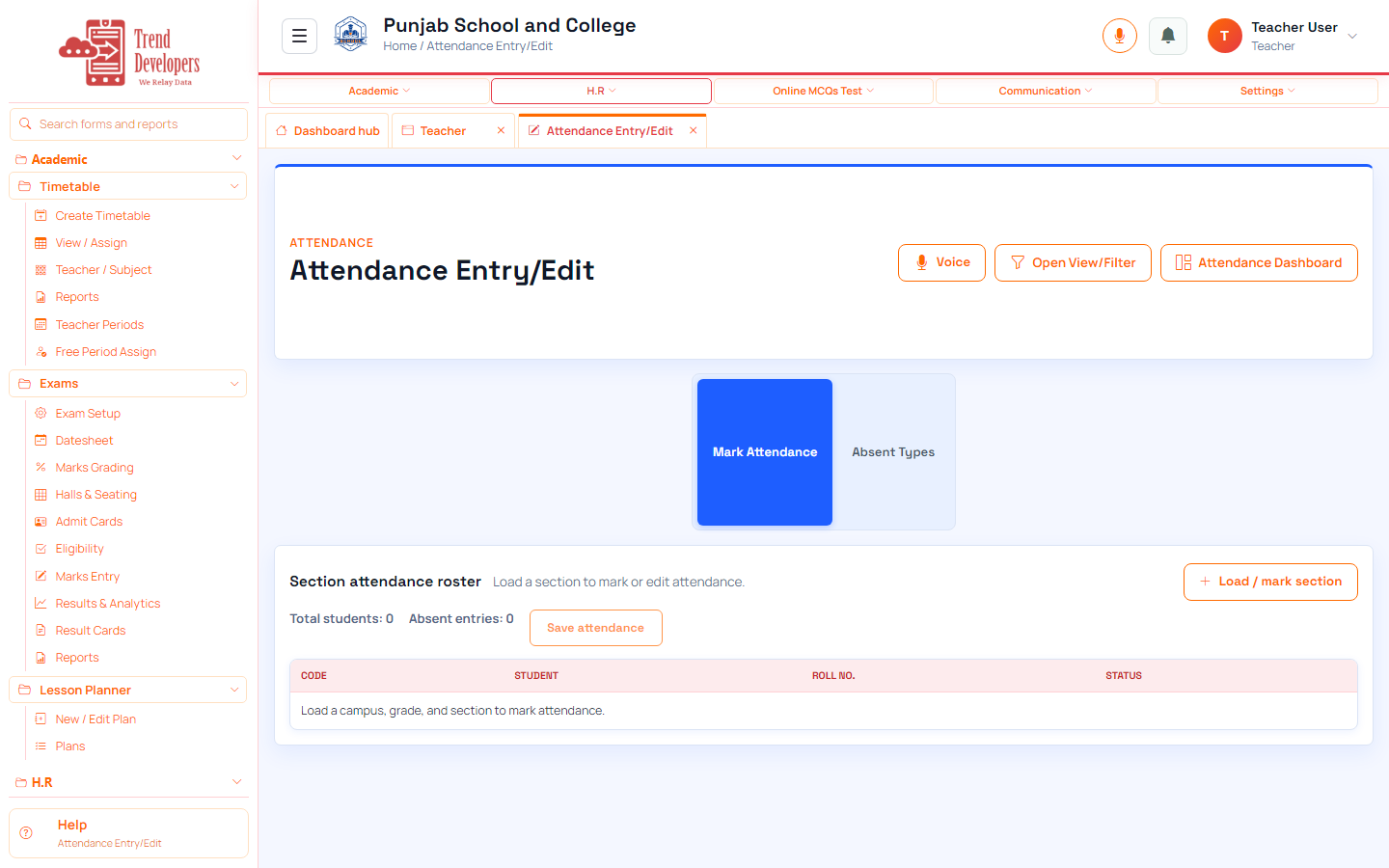
4.1 Mark today’s attendance
Main task: Record who is present in your class
Why: The daily register is the official proof of presence for the school.
Menu: Academic → Attendance → Mark Attendance
Route: /attendance/entry
How to:
- Open Attendance → Mark Attendance.
- Choose Campus, Grade, Section, and today’s date.
- Mark each student Present, Late, or Absent.
- Save attendance for the whole class.
- Mark done.
Practice:
- Open live form: /attendance/entry
- Follow menu path: Academic → Attendance → Mark Attendance
- Practice: mark the full section register for today; leave one Late and one Absent
Expected: After this step, “Record who is present in your class” is true on the live system, and the Implementation Guide step “Mark today’s attendance” can be Mark done.
Mistakes:
- If this step is skipped: The daily register is the official proof of presence for the school.
- Saving attendance for the wrong section → another class appears unmarked.
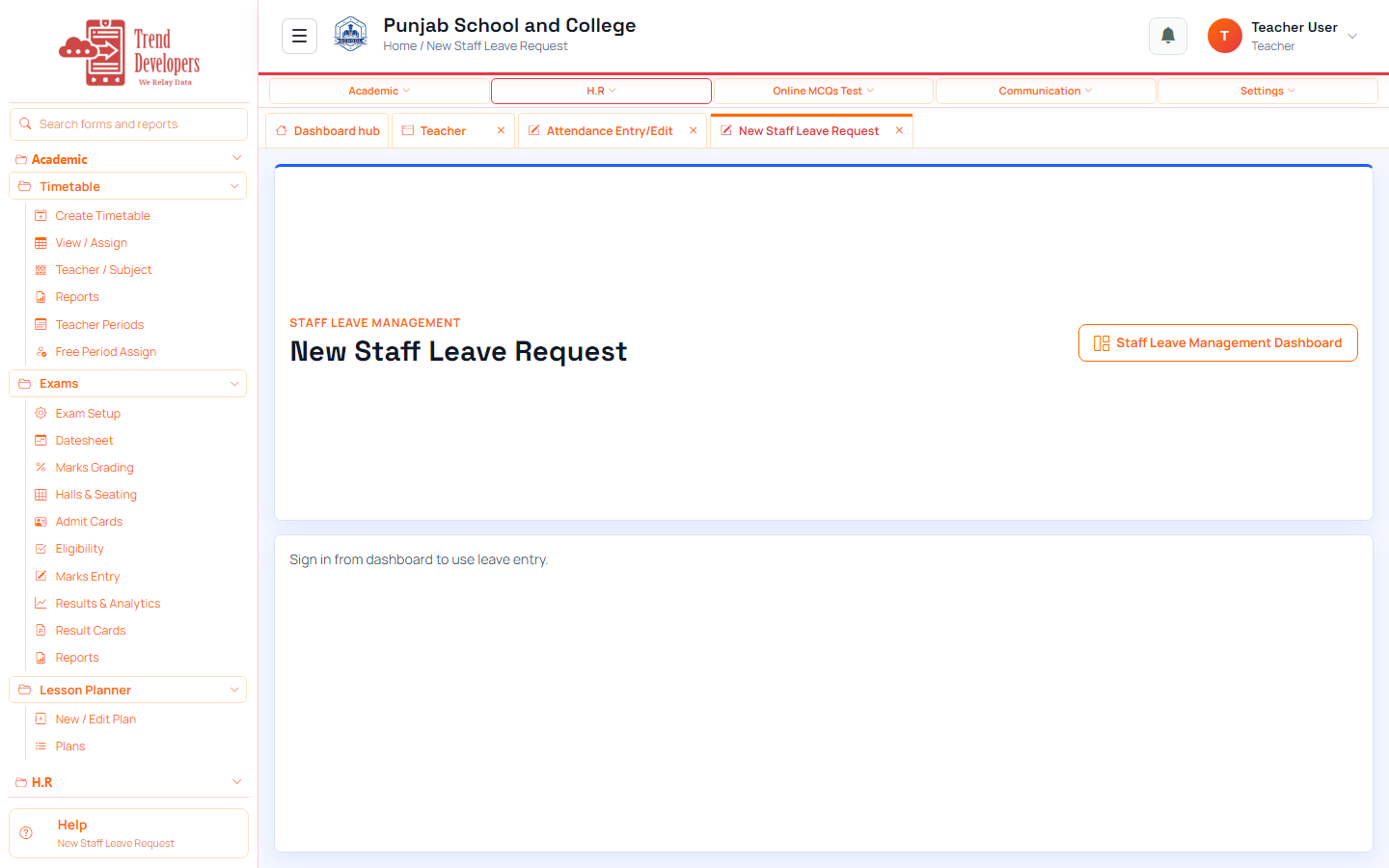
4.2 Request staff leave
Main task: Submit your own leave the official way
Why: Approved leave is separate from unmarked absence — use the leave form, not WhatsApp only.
Menu: H.R / Leave → Staff Leave → New Request
Route: /staff-leave/entry
How to:
- Open Staff Leave → New Staff Leave Request.
- Choose leave type and dates.
- Write a short reason.
- Submit.
- Mark done.
Practice:
- Open live form: /staff-leave/entry
- Follow menu path: H.R / Leave → Staff Leave → New Request
- Practice: one-day Casual leave with reason 'Family appointment'
Expected: After this step, “Submit your own leave the official way” is true on the live system, and the Implementation Guide step “Request staff leave” can be Mark done.
Mistakes:
- If this step is skipped: Approved leave is separate from unmarked absence — use the leave form, not WhatsApp only.
- Approving without reading dates/reason → payroll and coverage conflicts.
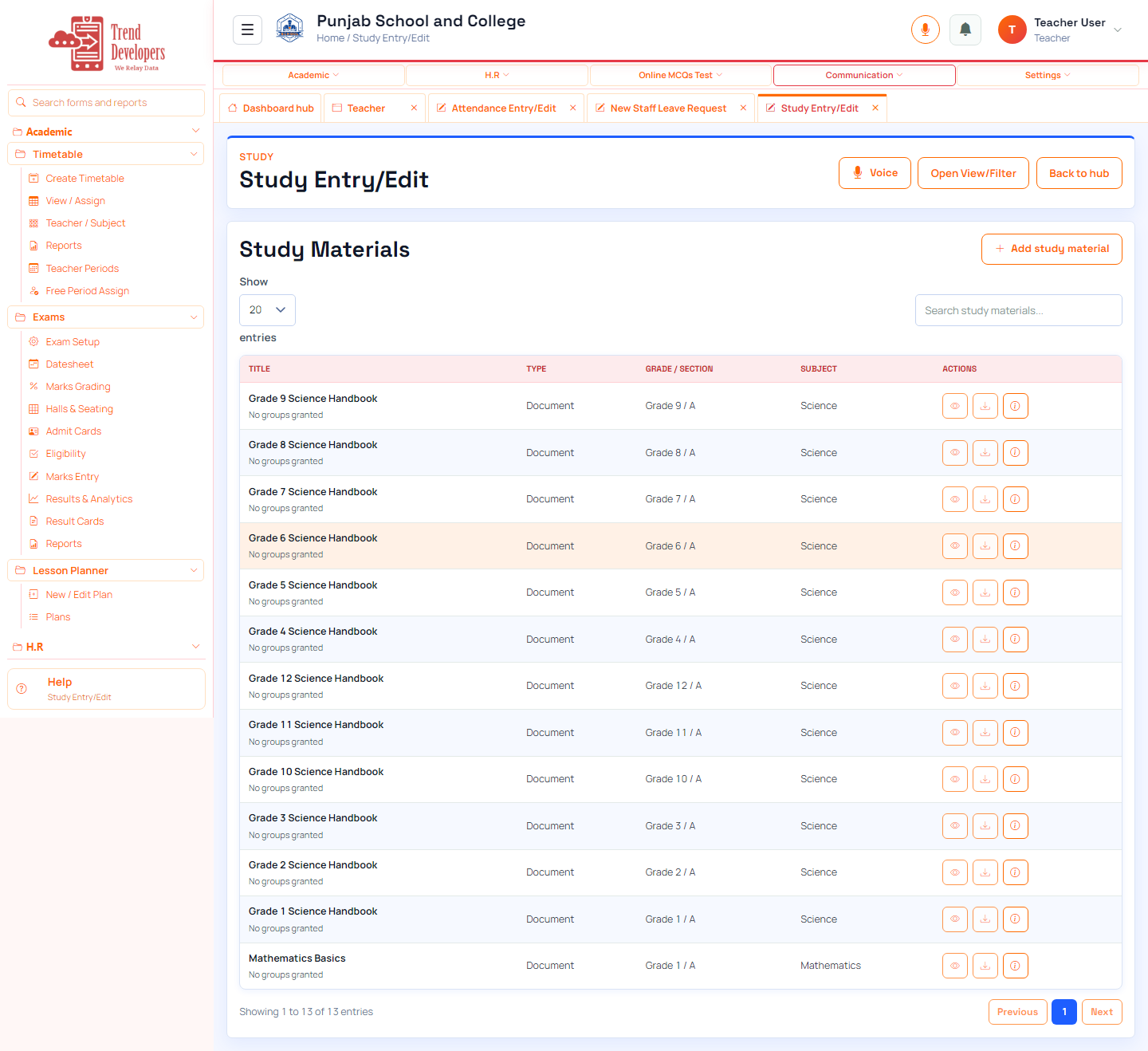
4.3 Share a study resource
Main task: Publish learning material to your class
Why: Students see only materials targeted to their class and subject.
Menu: Communication / Study → Study Materials → Entry
Route: /study/entry
How to:
- Open Study Materials → Entry.
- Choose campus, grade, section, and subject.
- Add title and a file or link.
- Publish when ready.
- Mark done.
Practice:
- Open live form: /study/entry
- Follow menu path: Communication / Study → Study Materials → Entry
- Practice: title='Week 1 reading list', attach a short PDF or link
Expected: After this step, “Publish learning material to your class” is true on the live system, and the Implementation Guide step “Share a study resource” can be Mark done.
Mistakes:
- If this step is skipped: Students see only materials targeted to their class and subject.
- Using WhatsApp instead of the official form — the audit trail will be missing.
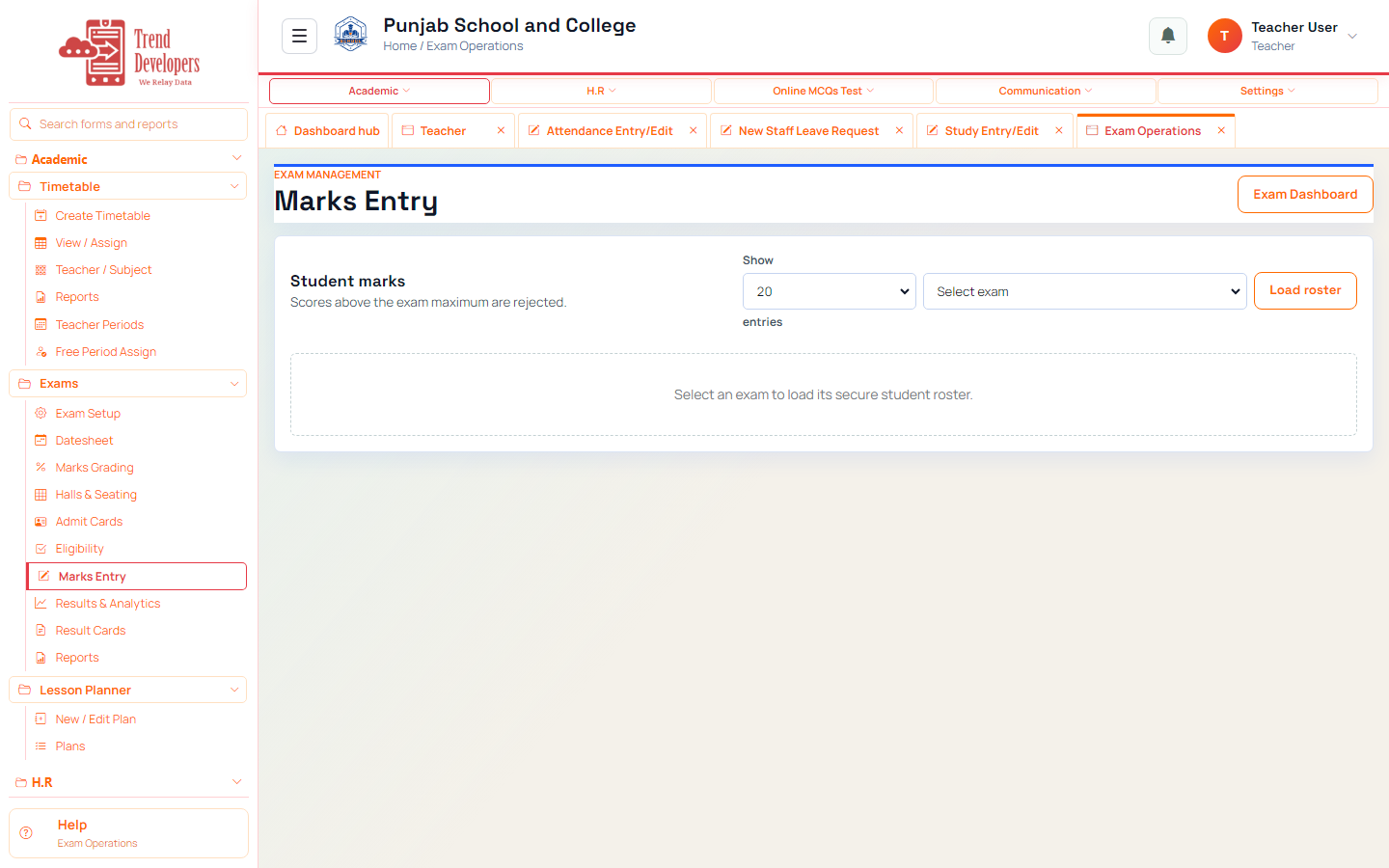
4.4 Enter exam marks
Main task: Score an assigned paper
Why: Marks feed results and report cards — enter carefully and save.
Menu: Academic → Exams → Marks Entry
Route: /exams/manage/marks
How to:
- Open Exams → Marks Entry.
- Select an available exam assigned to you.
- Enter marks for each student.
- Save (and lock only when complete).
- Mark done.
Practice:
- Open live form: /exams/manage/marks
- Follow menu path: Academic → Exams → Marks Entry
- Practice: enter marks for three students, save without locking until complete
Expected: After this step, “Score an assigned paper” is true on the live system, and the Implementation Guide step “Enter exam marks” can be Mark done.
Mistakes:
- If this step is skipped: Marks feed results and report cards — enter carefully and save.
- Using WhatsApp instead of the official form — the audit trail will be missing.
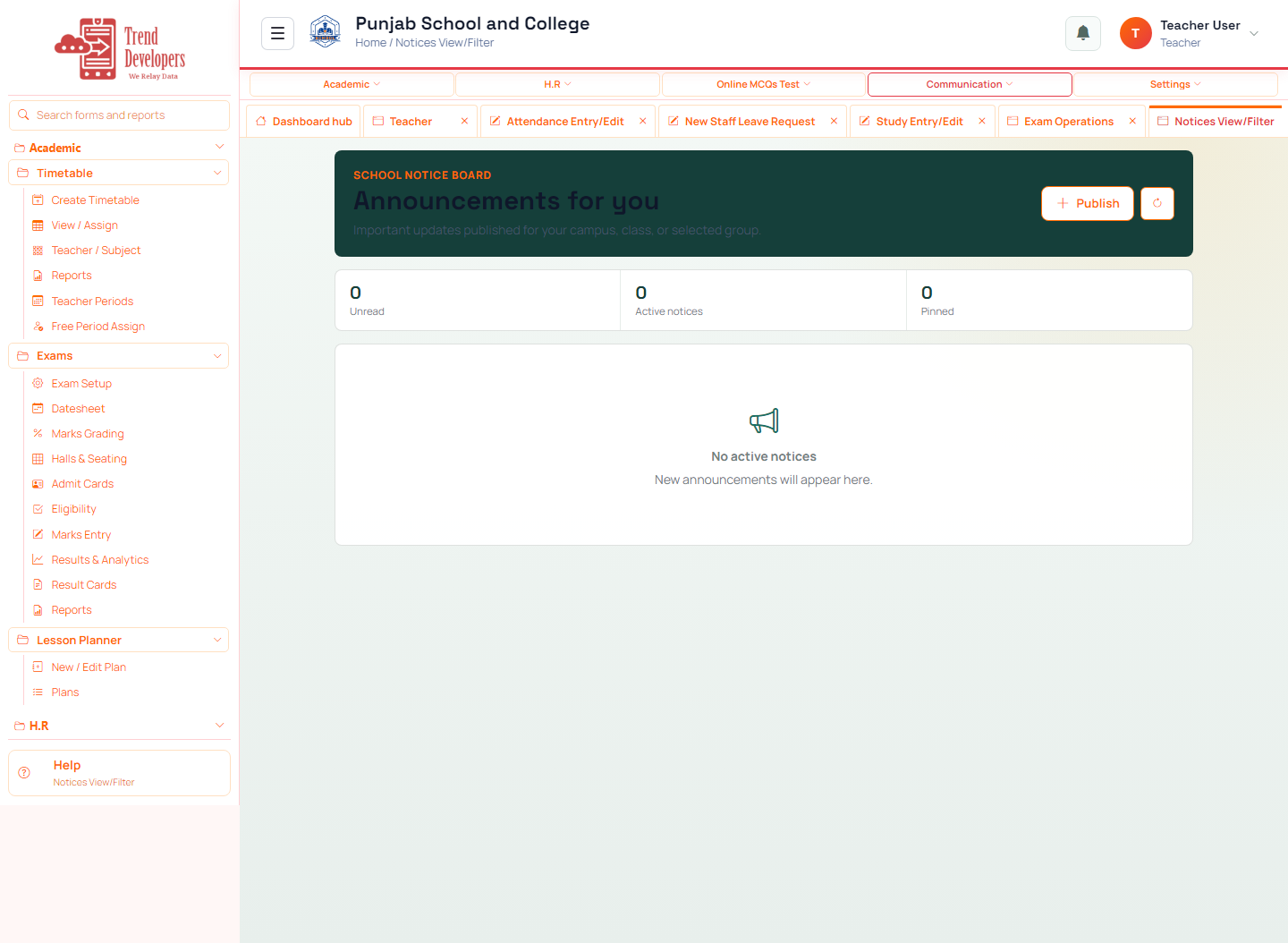
4.5 Read school notices
Main task: Stay current with school announcements
Why: Notices replace scattered WhatsApp announcements for official messages.
Menu: Communication → News & Notices → Records
Route: /notices/records
How to:
- Open Notices / News & Notices records.
- Open any unread notice.
- Follow any action link if provided.
- Mark done.
Practice:
- Open live form: /notices/records
- Follow menu path: Communication → News & Notices → Records
- Practice: open the newest notice and note the published date
Expected: After this step, “Stay current with school announcements” is true on the live system, and the Implementation Guide step “Read school notices” can be Mark done.
Mistakes:
- If this step is skipped: Notices replace scattered WhatsApp announcements for official messages.
- Using WhatsApp instead of the official form — the audit trail will be missing.
5. Capstone checklist
- □ Mark today’s attendance
- □ Request staff leave
- □ Share a study resource
- □ Enter exam marks
- □ Read school notices
6. Knowledge check
Q: What is the first main task on the Teacher track?
A: Record who is present in your class
Q: Which menu path opens “Mark today’s attendance”?
A: Academic → Attendance → Mark Attendance
Q: Why does “Request staff leave” matter?
A: Approved leave is separate from unmarked absence — use the leave form, not WhatsApp only.
Q: What happens if you finish a live form but do not Mark done?
A: Later Implementation Guide steps stay locked / progress is incomplete.
Q: Demo username for this kit?
A: teacher@liveschool
7. Video