LiveSchools365 Role Training Kit — Student
Trainer-grade · 2026-09-23 · ~18 min · https://liveschools365.com
USER TRAINING (not QA smoke).
1. Purpose
Use the student portal: dashboard, study materials, notices, and communication.
Business scenario
You sign in as a learner to find study materials, notices, and your own academic records — without seeing admin setup menus.
Learning outcomes
- Complete the Student Implementation Guide track end-to-end (~18 minutes).
- Use the student portal: dashboard, study materials, notices, and communication.
- Use official menu paths instead of informal messaging for auditable school work.
- Know when to Mark done and how to resume from /implement or Trial Journey.
2. Sign in
- Login:
/school-management-software-login - User:
student.g01.001@liveschool - Password:
LiveSchool@123 - Guide:
/implement/student
3–4. Guided workflows
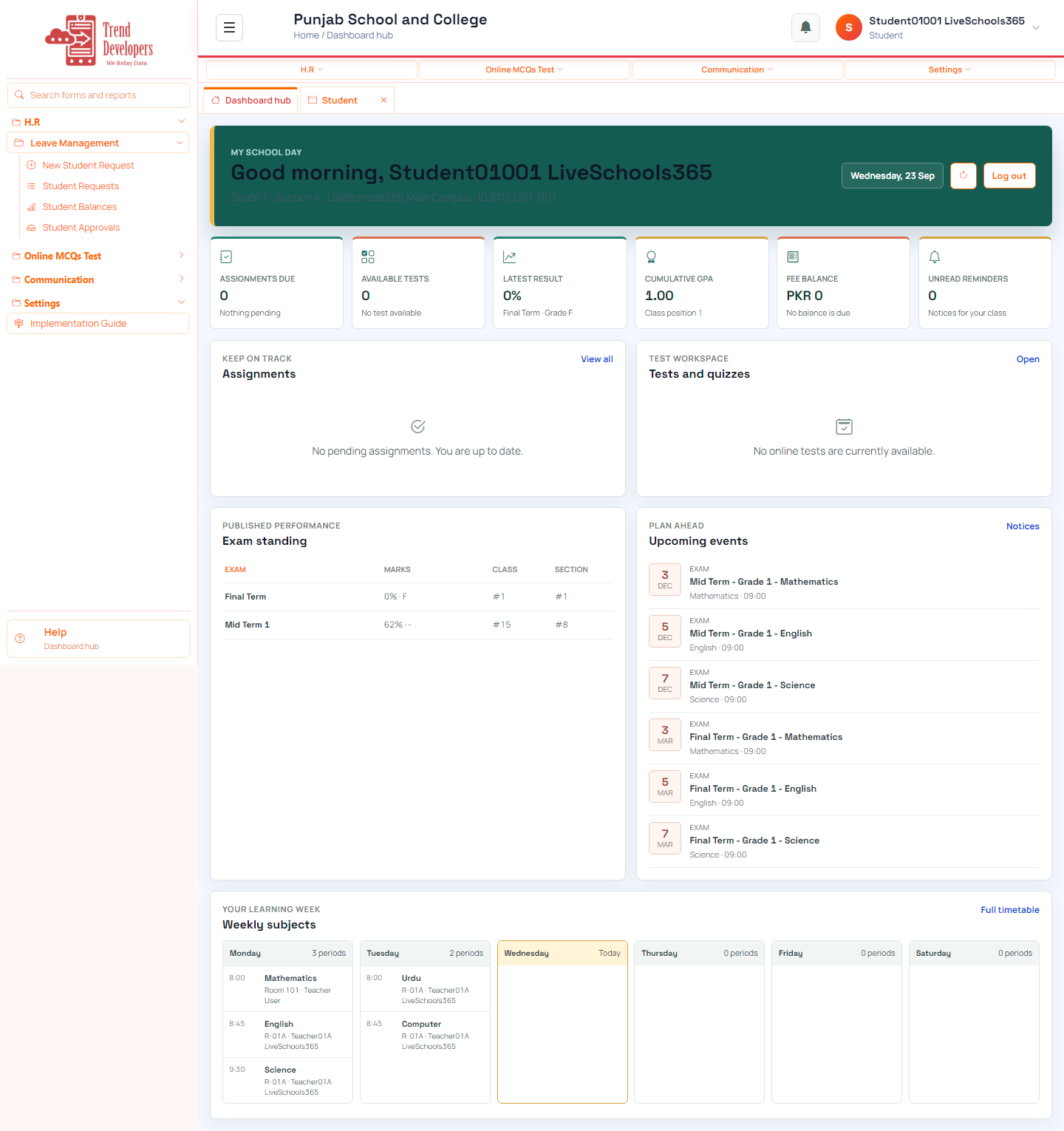
4.1 Open your student dashboard
Main task: See your class overview in one place
Why: The student home shows timetable, assignments, and upcoming items for your login.
Menu: Home → Dashboard
Route: /app
How to:
- Sign in as the student demo user.
- Open the main dashboard.
- Confirm class, campus, and student ID look correct.
- Mark done.
Practice:
- Open live form: /app
- Follow menu path: Home → Dashboard
- Practice goal: See your class overview in one place
Expected: After this step, “See your class overview in one place” is true on the live system, and the Implementation Guide step “Open your student dashboard” can be Mark done.
Mistakes:
- If this step is skipped: The student home shows timetable, assignments, and upcoming items for your login.
- Using WhatsApp instead of the official form — the audit trail will be missing.
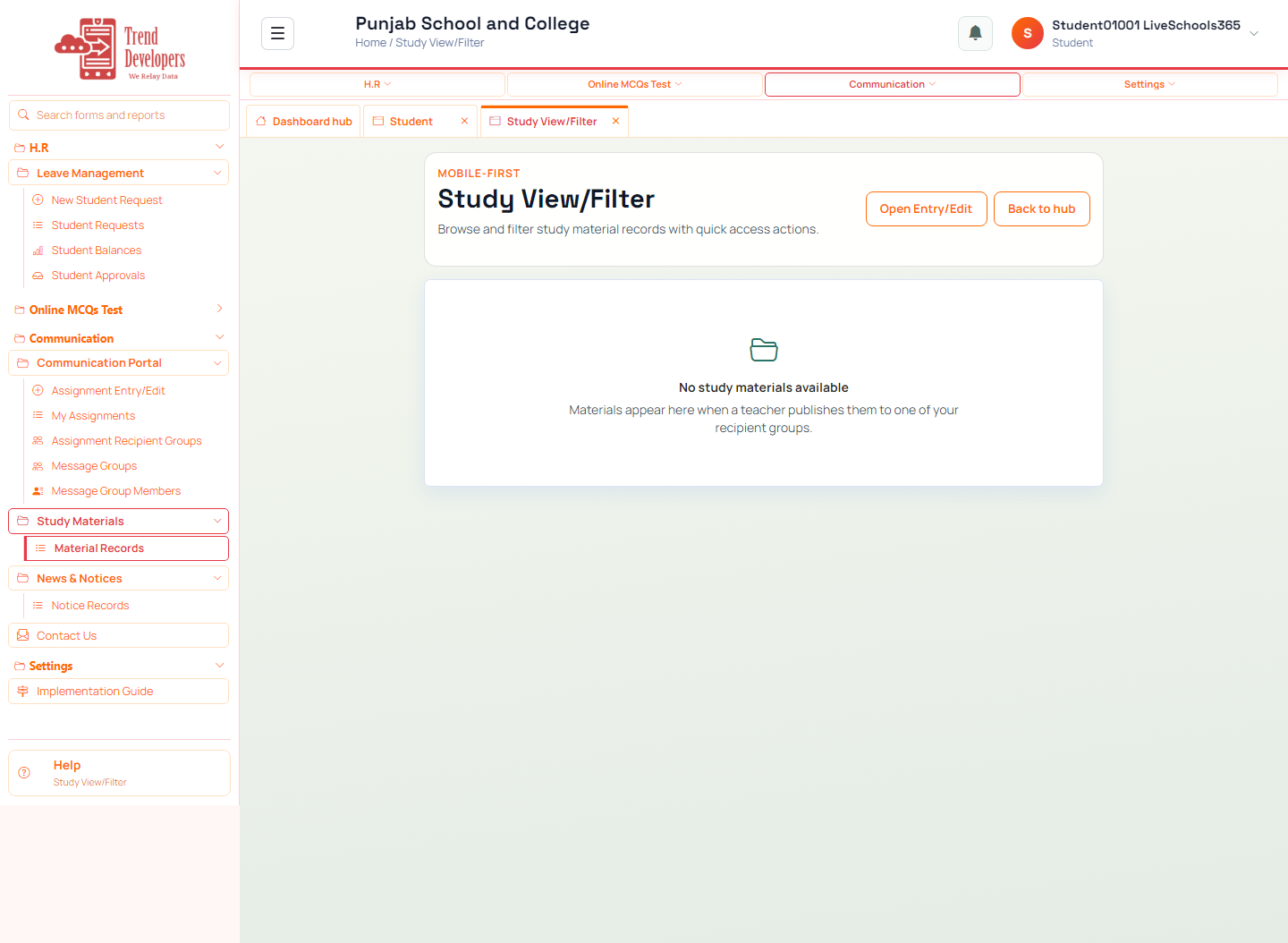
4.2 Open study materials
Main task: Find resources your teachers published
Why: Study materials are filtered to your class and subjects.
Menu: Communication / Study → Study Materials → Records
Route: /study/records
How to:
- Open Study Materials → Records.
- Browse items for your class.
- Open one material if listed.
- Mark done.
Practice:
- Open live form: /study/records
- Follow menu path: Communication / Study → Study Materials → Records
- Practice: title='Week 1 reading list', attach a short PDF or link
Expected: After this step, “Find resources your teachers published” is true on the live system, and the Implementation Guide step “Open study materials” can be Mark done.
Mistakes:
- If this step is skipped: Study materials are filtered to your class and subjects.
- Using WhatsApp instead of the official form — the audit trail will be missing.
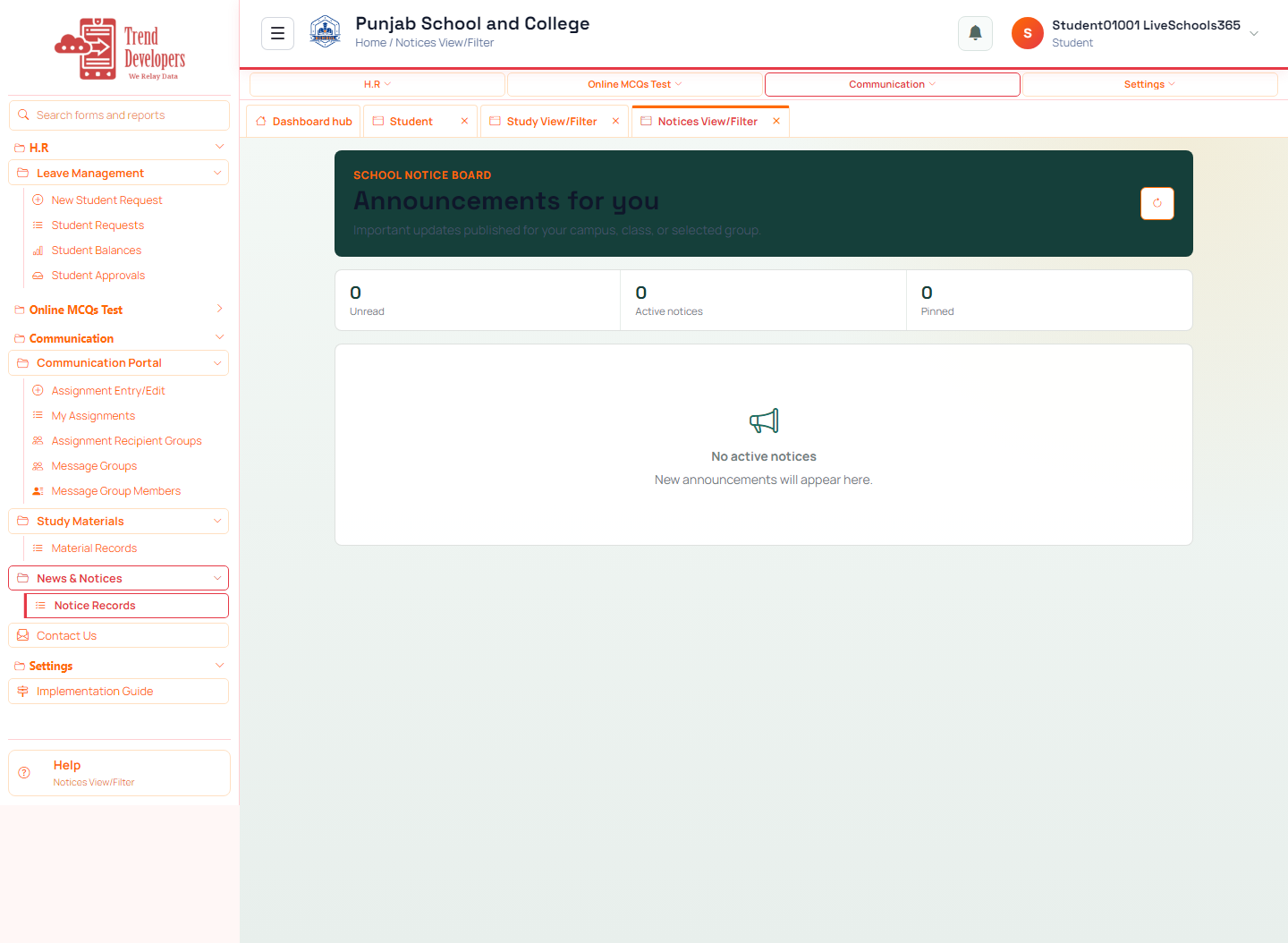
4.3 Read school notices
Main task: Stay current with official announcements
Why: Notices are the school’s official channel to students.
Menu: Communication → News & Notices → Records
Route: /notices/records
How to:
- Open Notices records.
- Open any unread notice.
- Mark done.
Practice:
- Open live form: /notices/records
- Follow menu path: Communication → News & Notices → Records
- Practice: open the newest notice and note the published date
Expected: After this step, “Stay current with official announcements” is true on the live system, and the Implementation Guide step “Read school notices” can be Mark done.
Mistakes:
- If this step is skipped: Notices are the school’s official channel to students.
- Using WhatsApp instead of the official form — the audit trail will be missing.
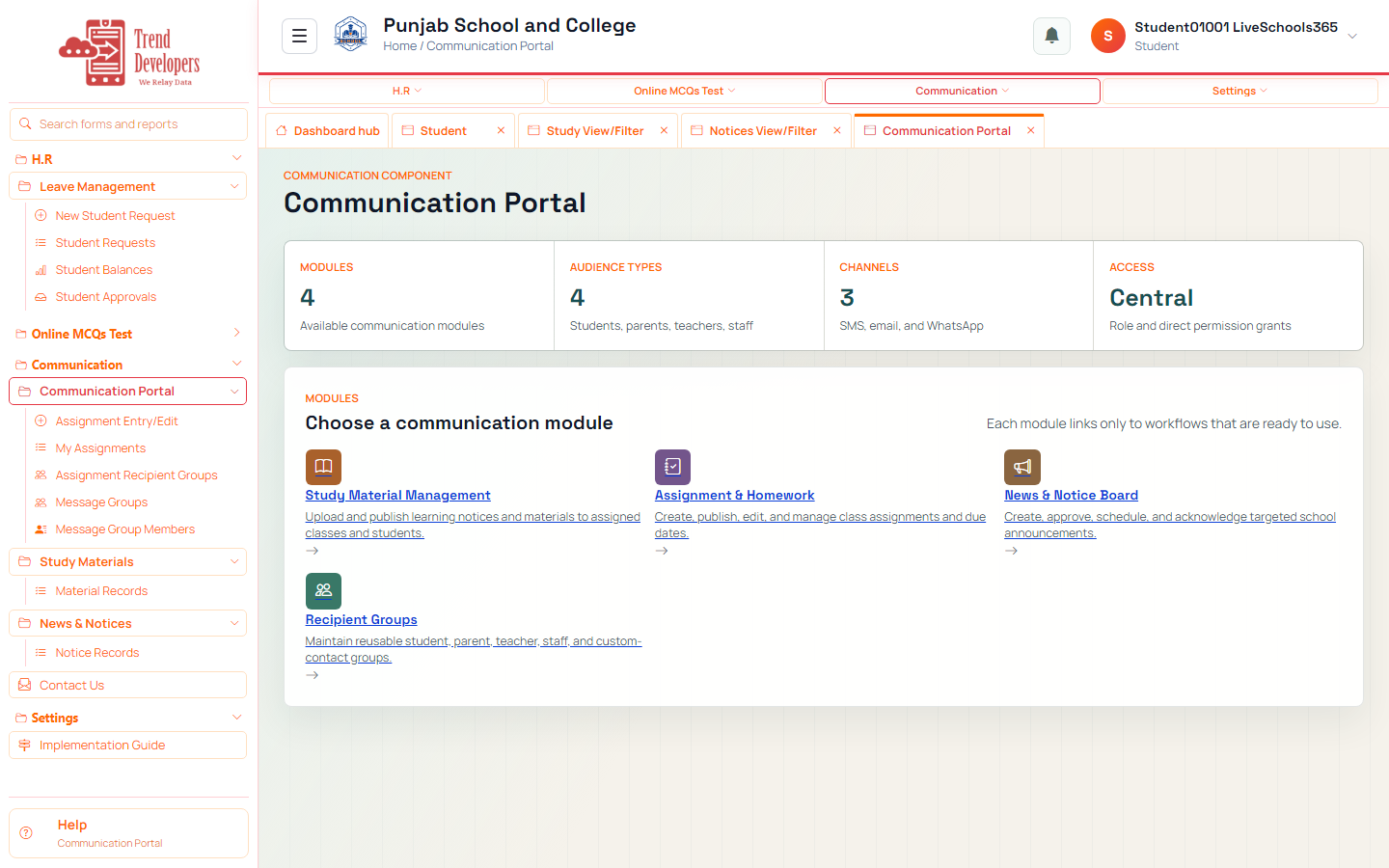
4.4 Check communication
Main task: See assignments and messages for you
Why: Communication holds targeted school messages and assignment links.
Menu: Communication → Portal
Route: /communication
How to:
- Open Communication.
- Review assignments or messages listed for you.
- Mark done.
Fields:
- 1. Class & lesson — Choose the year, campus, grade, subject, teacher, topic, date, and duration.
- 2. Goals & standards — Select curriculum standards and write observable learning outcomes.
- 3. Teaching sequence — Map the hook, explanation, guided practice, independent practice, and closure.
- 4. Check & support — List what is needed, how learning will be measured, and how diverse learners will be supported.
- 5. Review & submit — Read the lesson as another teacher would, resolve required gaps, save, print, or submit.
Practice:
- Open live form: /communication
- Follow menu path: Communication → Portal
- Practice goal: See assignments and messages for you
Expected: After this step, “See assignments and messages for you” is true on the live system, and the Implementation Guide step “Check communication” can be Mark done.
Mistakes:
- If this step is skipped: Communication holds targeted school messages and assignment links.
- Using WhatsApp instead of the official form — the audit trail will be missing.
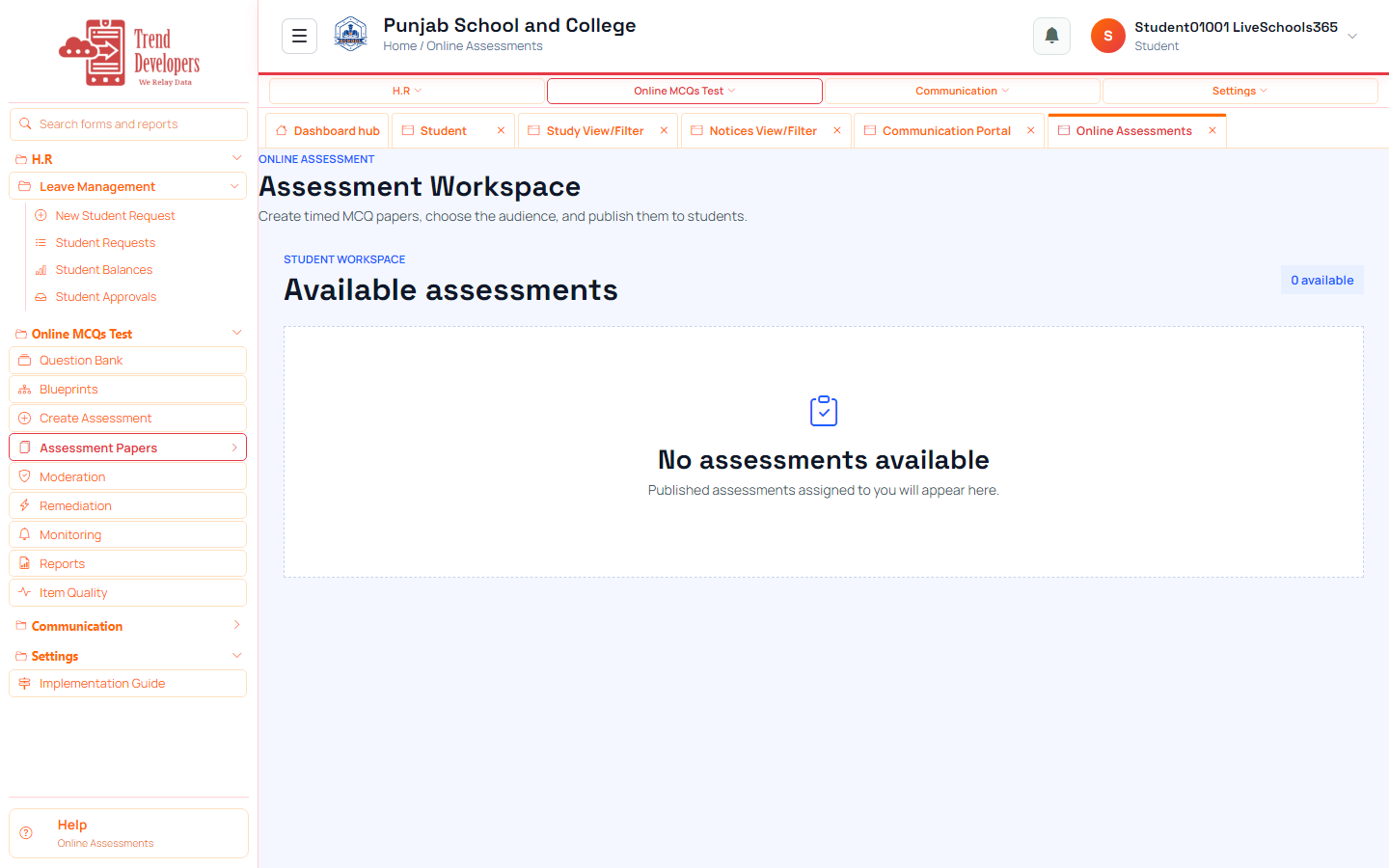
4.5 Try online assessment (if assigned)
Main task: Sit a practice paper when one is published
Why: Online assessments appear when a teacher publishes a paper to your class.
Menu: Academic → Online Assessments
Route: /online-assessments
How to:
- Open Online Assessments.
- If a paper is listed for you, open it and review instructions.
- If none are published yet, Skip this step.
- Mark done when finished reviewing.
Practice:
- Open live form: /online-assessments
- Follow menu path: Academic → Online Assessments
- Practice goal: Sit a practice paper when one is published
Expected: After this step, “Sit a practice paper when one is published” is true on the live system, and the Implementation Guide step “Try online assessment (if assigned)” can be Mark done.
Mistakes:
- If this step is skipped: Online assessments appear when a teacher publishes a paper to your class.
- Using WhatsApp instead of the official form — the audit trail will be missing.
5. Capstone checklist
- □ Open your student dashboard
- □ Open study materials
- □ Read school notices
- □ Check communication
- □ Try online assessment (if assigned)
6. Knowledge check
Q: What is the first main task on the Student track?
A: See your class overview in one place
Q: Which menu path opens “Open your student dashboard”?
A: Home → Dashboard
Q: Why does “Open study materials” matter?
A: Study materials are filtered to your class and subjects.
Q: What happens if you finish a live form but do not Mark done?
A: Later Implementation Guide steps stay locked / progress is incomplete.
Q: Demo username for this kit?
A: student.g01.001@liveschool
7. Video