LiveSchools365 Role Training Kit — Store
Trainer-grade · 2026-09-23 · ~19 min · https://liveschools365.com
USER TRAINING (not QA smoke).
1. Purpose
Run warehouse stock: products, requisitions, balances, and reports.
Business scenario
The science lab needs stock. You open Store, review requisitions, and walk one operational list so issues and receipts stay auditable.
Learning outcomes
- Complete the Store Implementation Guide track end-to-end (~19 minutes).
- Run warehouse stock: products, requisitions, balances, and reports.
- Use official menu paths instead of informal messaging for auditable school work.
- Know when to Mark done and how to resume from /implement or Trial Journey.
2. Sign in
- Login:
/school-management-software-login - User:
store@liveschool - Password:
LiveSchool@123 - Guide:
/implement/store
3–4. Guided workflows
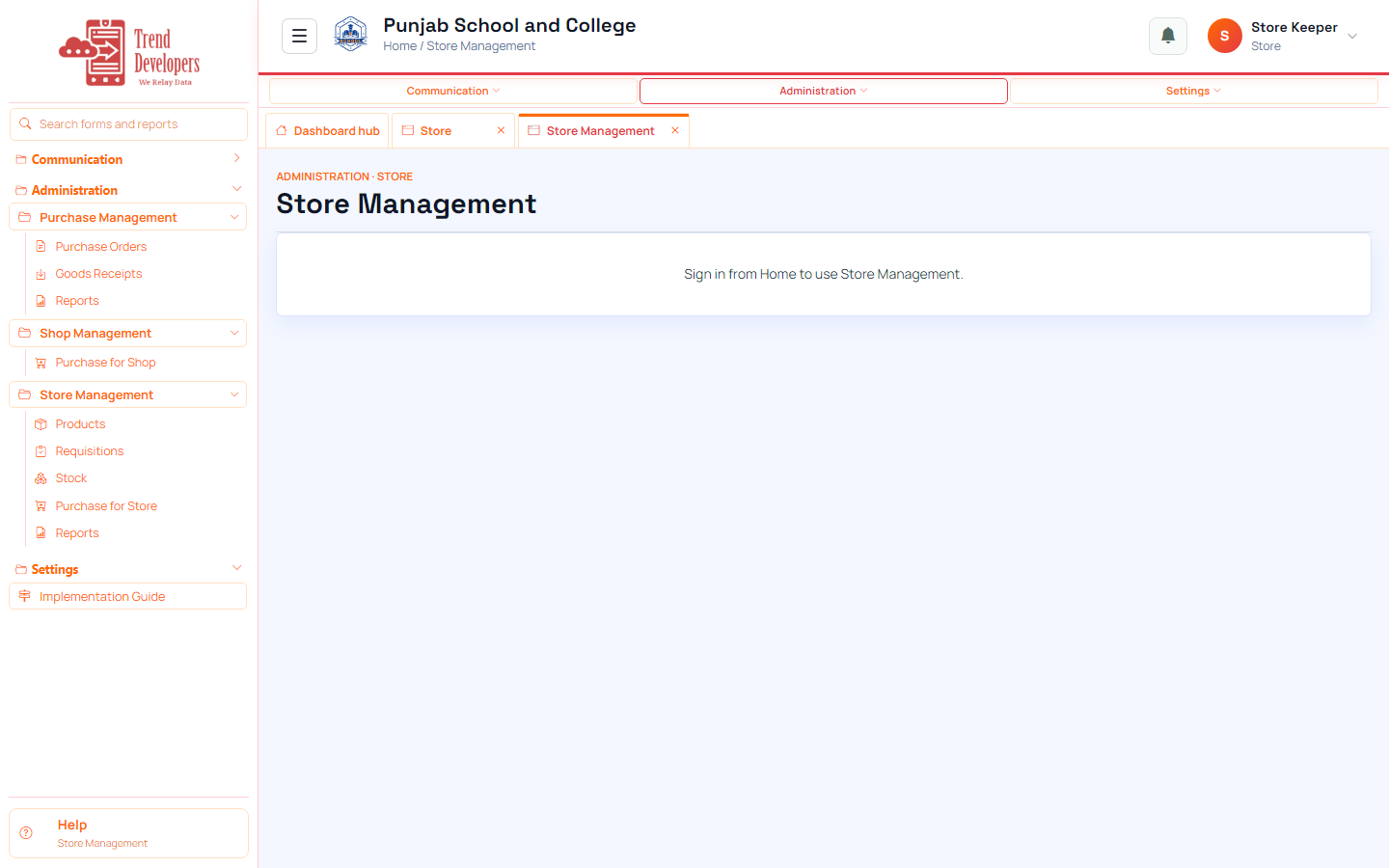
4.1 Open Store Management
Main task: Reach the warehouse workspace
Why: Store handles internal stock after goods are received.
Menu: Purchase / Store / Shop → Store
Route: /store
How to:
- Open Store from the menu or dashboard hub.
- Note low-stock or waiting requisitions.
- Mark done.
Practice:
- Open live form: /store
- Follow menu path: Purchase / Store / Shop → Store
- Practice: open requisitions list and note status of the top row
Expected: After this step, “Reach the warehouse workspace” is true on the live system, and the Implementation Guide step “Open Store Management” can be Mark done.
Mistakes:
- If this step is skipped: Store handles internal stock after goods are received.
- Using WhatsApp instead of the official form — the audit trail will be missing.
4.2 Confirm products exist
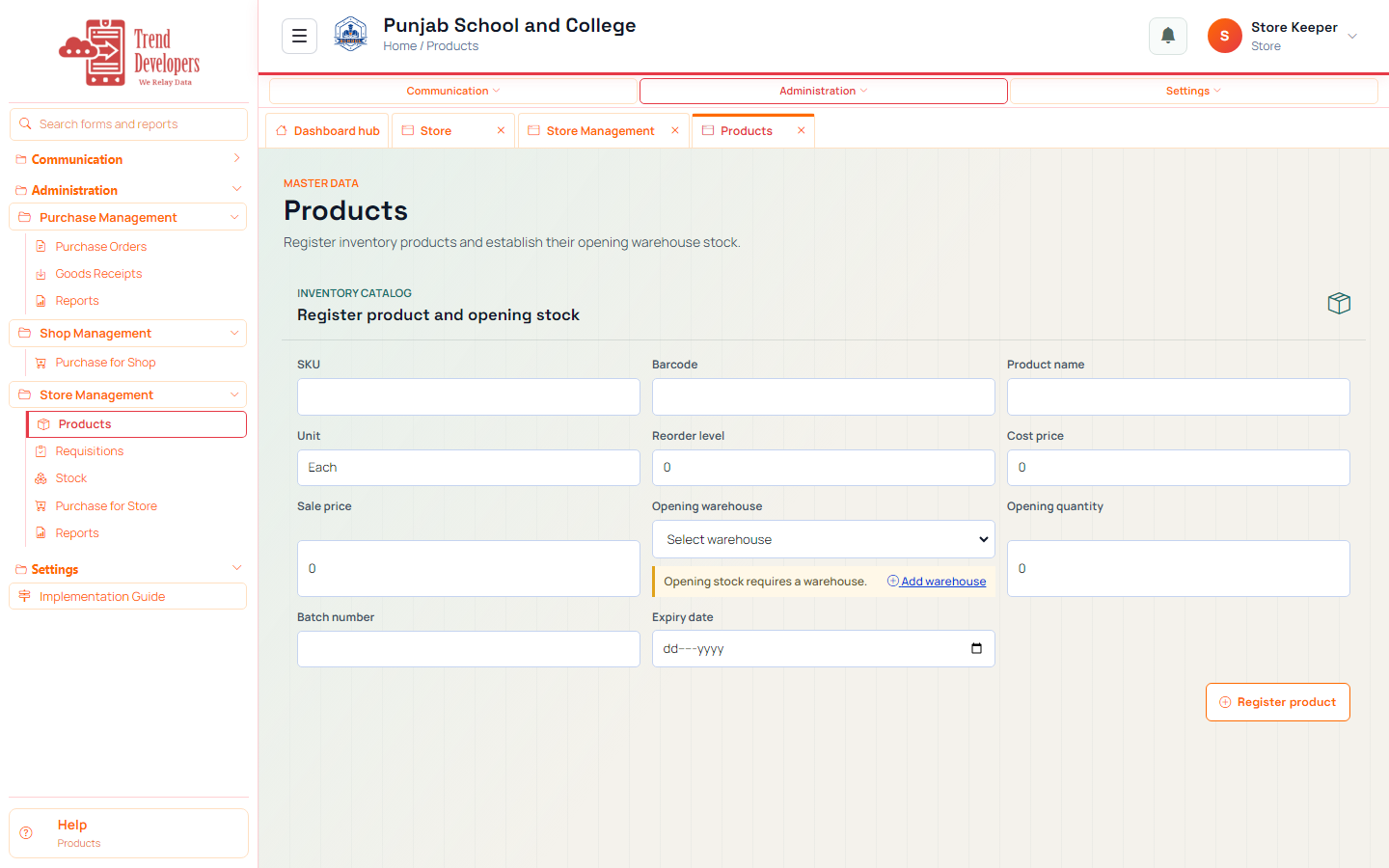
Main task: Items must exist before stock moves
Why: Products are shared by Purchase, Store, and Shop.
Menu: Administration → Master Data → Products
Route: /master-data/products
How to:
- Open Products.
- Confirm a stationery or classroom item exists.
- Add one if the list is empty.
- Mark done.
Practice:
- Open live form: /master-data/products
- Follow menu path: Administration → Master Data → Products
- Practice goal: Items must exist before stock moves
Expected: After this step, “Items must exist before stock moves” is true on the live system, and the Implementation Guide step “Confirm products exist” can be Mark done.
Mistakes:
- If this step is skipped: Products are shared by Purchase, Store, and Shop.
- Creating sections before campus/year/grade → cascading lists stay empty.
4.3 Create or issue a requisition
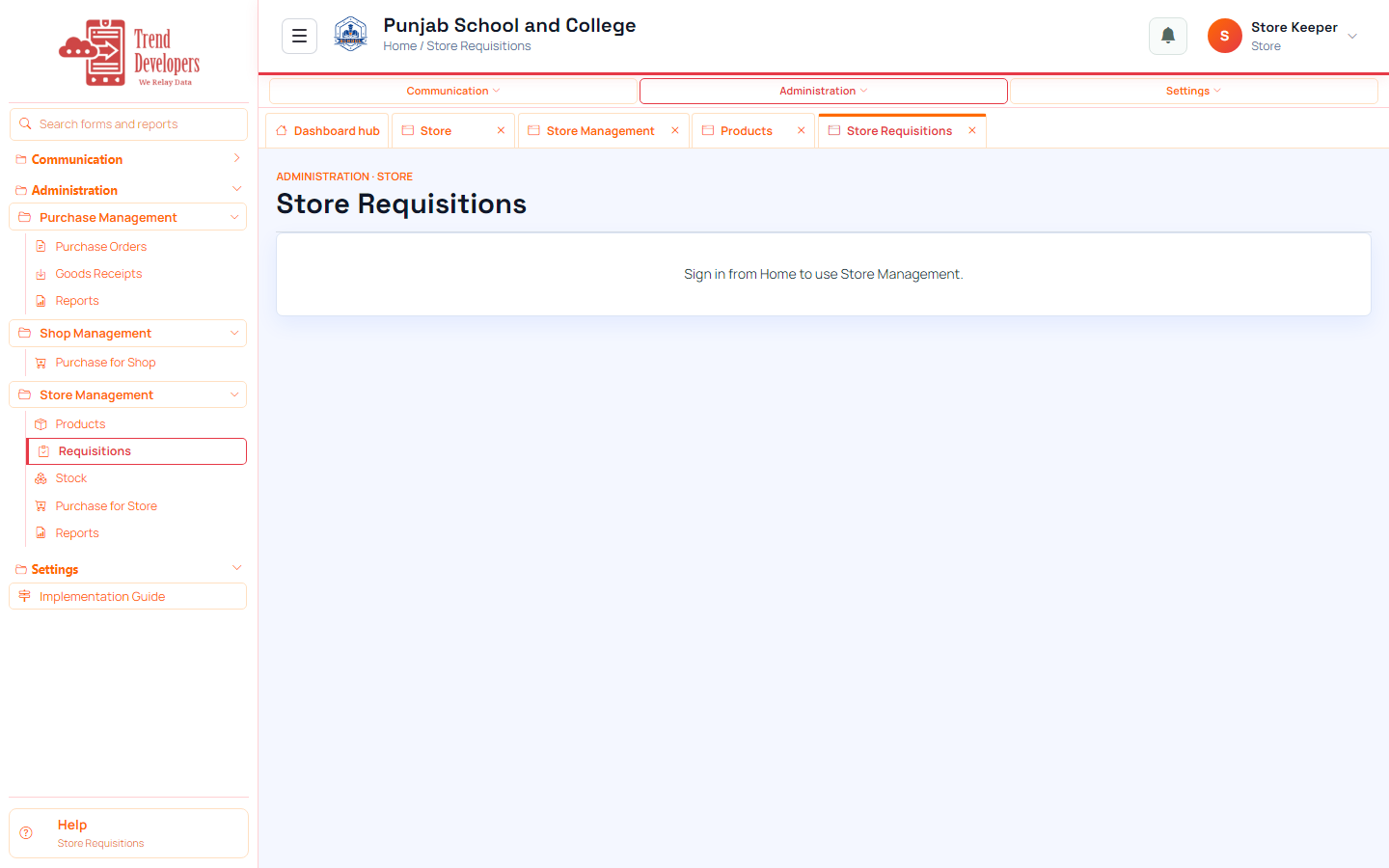
Main task: Move stock with an audit trail
Why: Requisitions request and issue warehouse quantities to departments.
Menu: Purchase / Store / Shop → Store → Requisitions
Route: /store/requisitions
How to:
- Open Store → Requisitions.
- Create a small internal request, or open a waiting one.
- Issue if stock is available.
- Mark done.
Practice:
- Open live form: /store/requisitions
- Follow menu path: Purchase / Store / Shop → Store → Requisitions
- Practice: open requisitions list and note status of the top row
Expected: After this step, “Move stock with an audit trail” is true on the live system, and the Implementation Guide step “Create or issue a requisition” can be Mark done.
Mistakes:
- If this step is skipped: Requisitions request and issue warehouse quantities to departments.
- Using WhatsApp instead of the official form — the audit trail will be missing.
4.4 Check stock balances
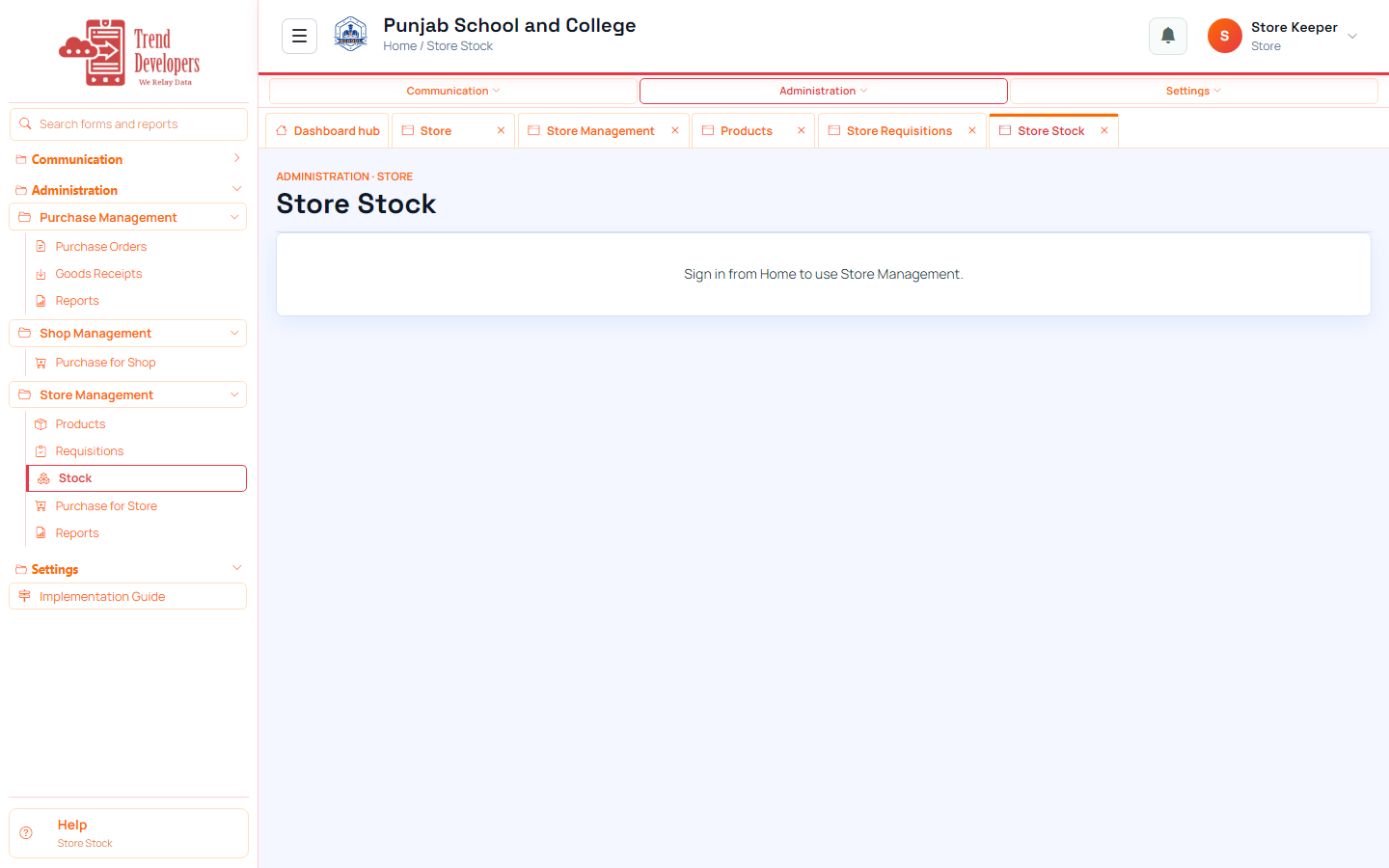
Main task: Verify warehouse quantities after movements
Why: Stock is the live on-hand view by warehouse.
Menu: Purchase / Store / Shop → Store → Stock
Route: /store/stock
How to:
- Open Store → Stock.
- Find the trial product.
- Confirm quantity looks sensible.
- Mark done.
Practice:
- Open live form: /store/stock
- Follow menu path: Purchase / Store / Shop → Store → Stock
- Practice goal: Verify warehouse quantities after movements
Expected: After this step, “Verify warehouse quantities after movements” is true on the live system, and the Implementation Guide step “Check stock balances” can be Mark done.
Mistakes:
- If this step is skipped: Stock is the live on-hand view by warehouse.
- Using WhatsApp instead of the official form — the audit trail will be missing.
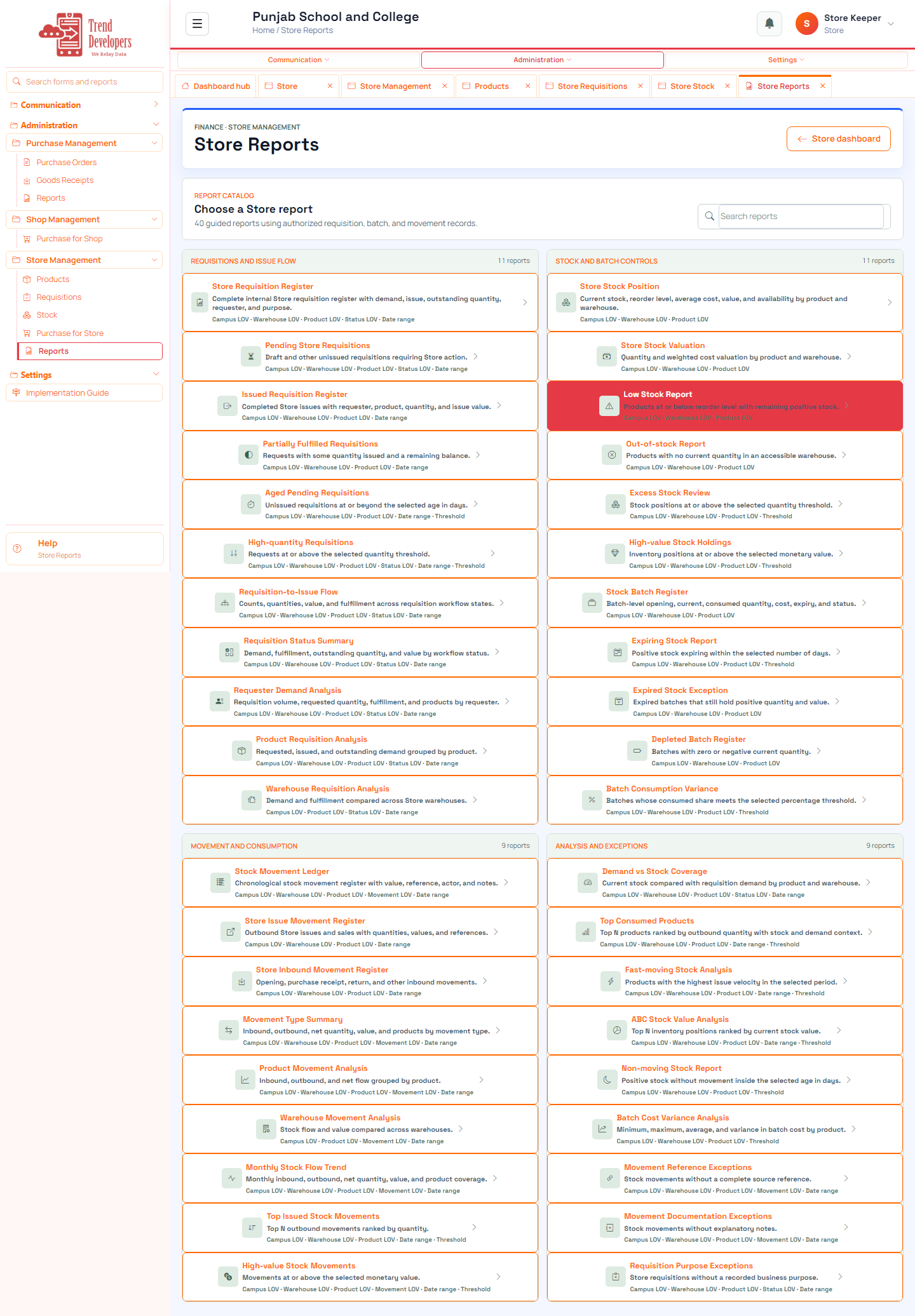
4.5 Run a store report
Main task: Print stock or issue activity
Why: Reports are the inventory audit print.
Menu: Purchase / Store / Shop → Store → Reports
Route: /store/reports
How to:
- Open Store reports.
- Run a stock or issue listing.
- Mark done.
Fields:
- Report parameters — Define the authorized Store population and analysis scope.
- Export to Excel — Download the generated result with branding, metadata, parameters, and rows.
- Inquiry date — Record when the family first contacted the school.
- Parent contact — Identify the responsible adult and provide channels for follow-up.
- Student name — Identify the prospective learner.
Practice:
- Open live form: /store/reports
- Follow menu path: Purchase / Store / Shop → Store → Reports
- Practice: open requisitions list and note status of the top row
Expected: After this step, “Print stock or issue activity” is true on the live system, and the Implementation Guide step “Run a store report” can be Mark done.
Mistakes:
- If this step is skipped: Reports are the inventory audit print.
- Using WhatsApp instead of the official form — the audit trail will be missing.
5. Capstone checklist
- □ Open Store Management
- □ Confirm products exist
- □ Create or issue a requisition
- □ Check stock balances
- □ Run a store report
6. Knowledge check
Q: What is the first main task on the Store track?
A: Reach the warehouse workspace
Q: Which menu path opens “Open Store Management”?
A: Purchase / Store / Shop → Store
Q: Why does “Confirm products exist” matter?
A: Products are shared by Purchase, Store, and Shop.
Q: What happens if you finish a live form but do not Mark done?
A: Later Implementation Guide steps stay locked / progress is incomplete.
Q: Demo username for this kit?
A: store@liveschool
7. Video